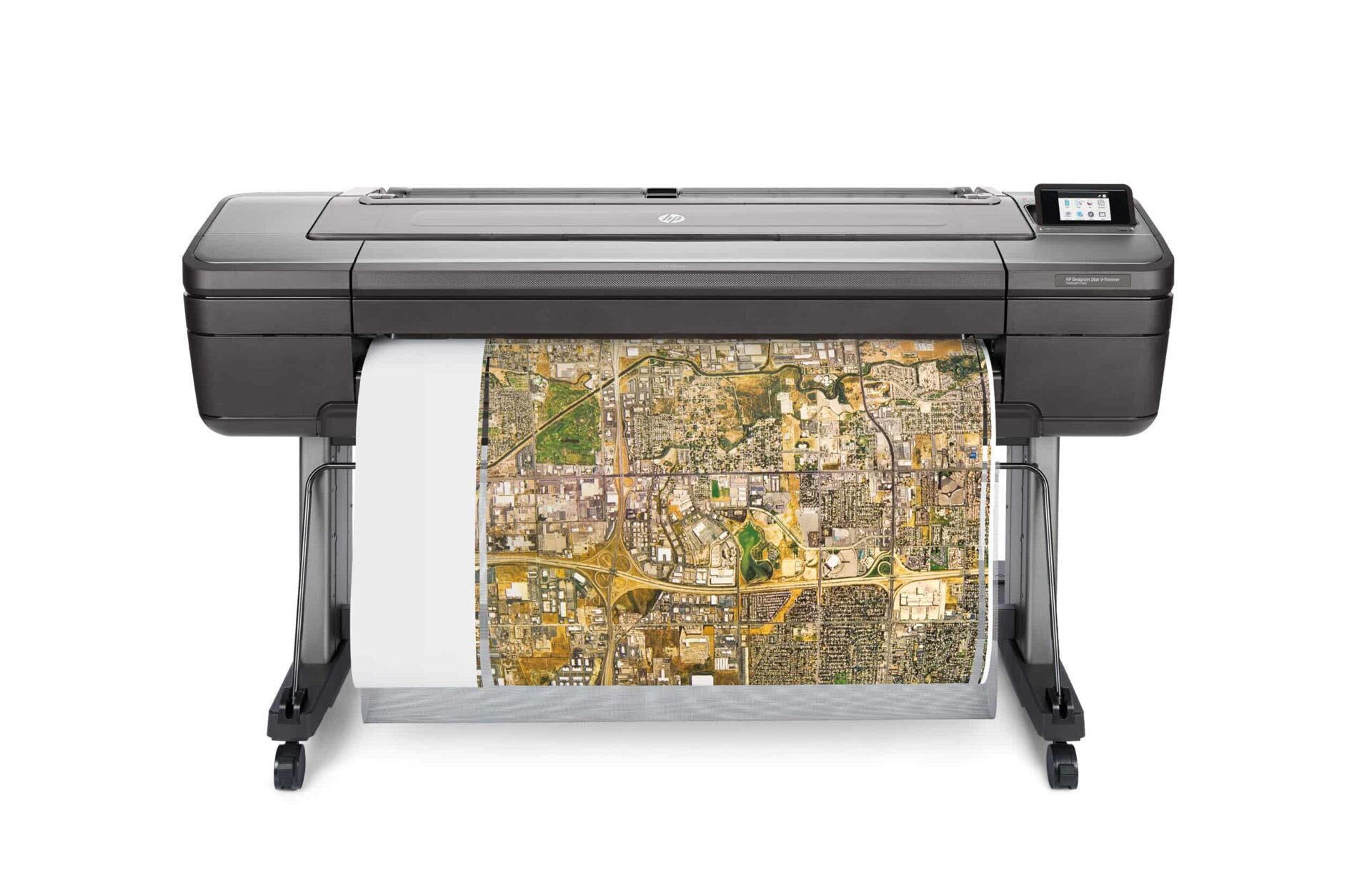
Notify the IT employee in the Innovation Hub that you need to use the Plotter
Locate the PC (either of the computers that are Not the Bloomberg Terminal)
Open HP Click
Locate file you would like to print (on a USB drive, in your email, etc.)
Drag and drop your file from the File Explorer to the HP Click software
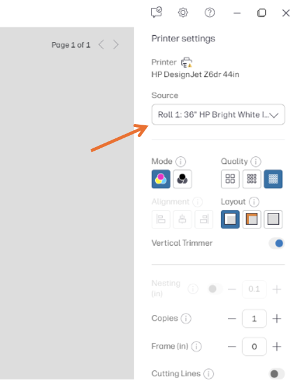
Select print paper:
Standard print paper is fit for most jobs, suitable for banner and posters
Poster paper is thicker and primarily for photographs and poster - be advised, this paper is more expensive
Use HP Click to format your print (size, detail level, positioning)
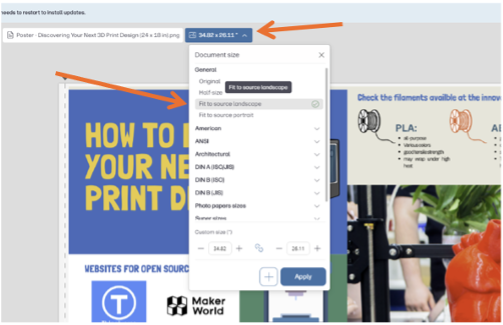
Document Size:
In the drop-down menu at the top of the screen (next to the file name), you can adjust the size of the print to your desired specifications. Use the "Fit to source landscape," or "Fit to source portrait," options to automatically format your file to fill the page
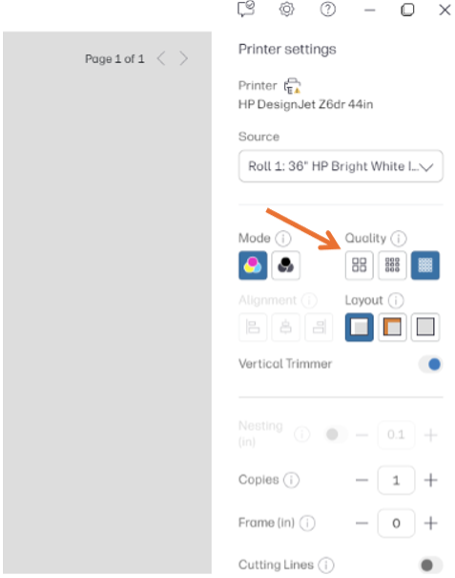
Quality:
Fast - For posters/banners to be viewed from far away - least detailed option, will ue less ink, print faster, less expensive
Normal - Fit for most print jobs, will retain quality and not use excessive ink
Best - ONLY for detailed jobs such as high-resolution pictures - this setting will use MUCH more ink than the others and be more costly
Print
Shut down the computer when you are finished
Return to the IT desk and pay for the print
Formatting Options
Document Size:
In the drop-down menu at the top of the screen (next to the file name), you can adjust the size of the print to your desired specifications. Use the “Fit to source landscape,” or “Fit to source portrait,” options to automatically format your file to fill the page
Quality:
Fast - For posters/banners to be viewed from far away - least detailed option, will use less ink, print faster, less expensive
Normal - Fit for most print jobs, will retain quality and not use excessive ink
Best - ONLY for detailed print jobs such as high-resolution pictures - this setting will use MUCH more ink than the others and be more costly
Layout:
“Printer Margins” setting will be appropriate for most jobs; use “Borderless” if you want to exclude some white space being printed on the outside edges
Vertical Trimmer:
Leave this option enabled if you want the printer to automatically trim away the unused space on the print. Turn it off if you would prefer to manually trim the print
Cutting Lines:
When enabled, this option will print dashed lines around the edge of the printed file to assist with manual trimming