
3D Scanning with the CR-Scan Otter
Detailed Instruction
Step 1: Preparing for Scanning
- Ask a consultant to log in to the computer for you.
- Place your object on the rotating plate next to the scanner.
- Open the Creality application from the desktop.
- Click Project to start scanning.
- Enter a Project Name and choose the folder path where your scan will be saved.

Step 2: Configuring Scan Settings
- Keep default scanning settings unless adjustments are required.
- Select Small Size for best results.
- Hover over the 'i' icon next to each setting for more details.
- See the Creality Wiki for detailed explanations:

Step 3: Starting the Scan
- Choose one of two scanning methods: Either fix the camera to the stand or held the camera and rotate it. Try both to determine which works better.
- Follow software guidance to adjust scanning distance (Green = optimal, Blue = too far).

- Adjust exposure time: Use Auto-Exposure for large targets, manually adjust for small objects until green.

- Enable RGB camera flash if the environment is dark.

- After adjustments, press Play in the software or the middle button on the scanner to start scanning.
- Keep the scanner at optimal distance and rotate the turntable manually if needed.
- Adjust the scanner angle to capture the top area.
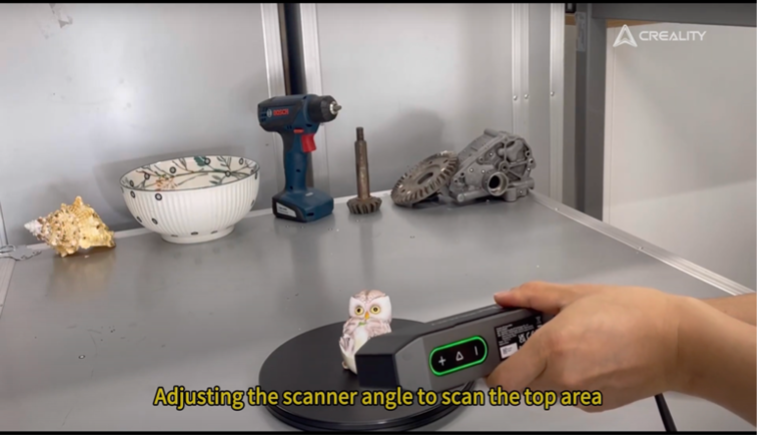
- Flip the object to scan its sides or underside.

- Complete scanning by pressing the Red Stop button and confirm with Yes and the project will be optimized (point cloud optimization).

Step 4: Merging Multiple Scans(Multi-Project)
- After the first scan and point cloud optimization, start a new scan by selecting 'New Project.'
- Reposition the object for additional coverage.
- Ensure there is enough overlap between scans.
- Use Multi-Project Merging to combine scans: choose Automatic Merge or Manual Merge for better accuracy.

Step 5: Editing the Scan
- Removing Unnecessary Details: Use the Selection Tool to select and delete unwanted parts.

- Adjust resolution after scanning.

- Adjust Mesh Settings: Increase the number of faces for better mesh details.
